
Interactive Props
Ready-made items
From the Item dropdown (writes VRItem.<Item>):
- TV Screen, Surface Screen
- Jukebox
- Video Bar Layout
- Drawing Board, Marker, Eraser, Spray Can
- Mirror, Mirror Widget, Button
- Rifle Pad, Pistol Pad
- Drivable Car
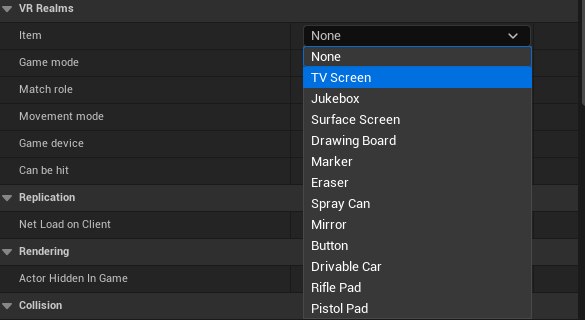
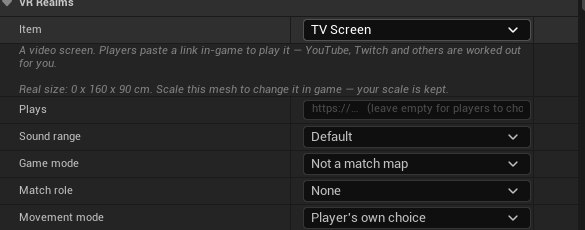
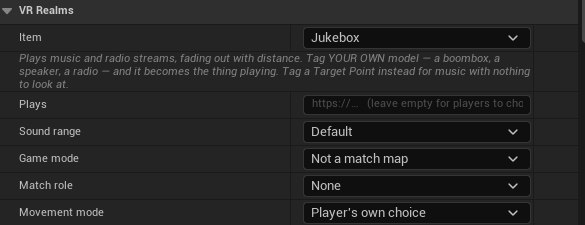
Screen & jukebox options
- Plays: the URL to start on load (
VRUrl.<url>). Empty = blank for players to fill. - Players can change it: turning it off writes
VRUrlLockso only your link plays. - Sound range: Default, Everywhere, Small 8 m, Medium 20 m, Large 45 m, or custom distance.
Video Bar Layout
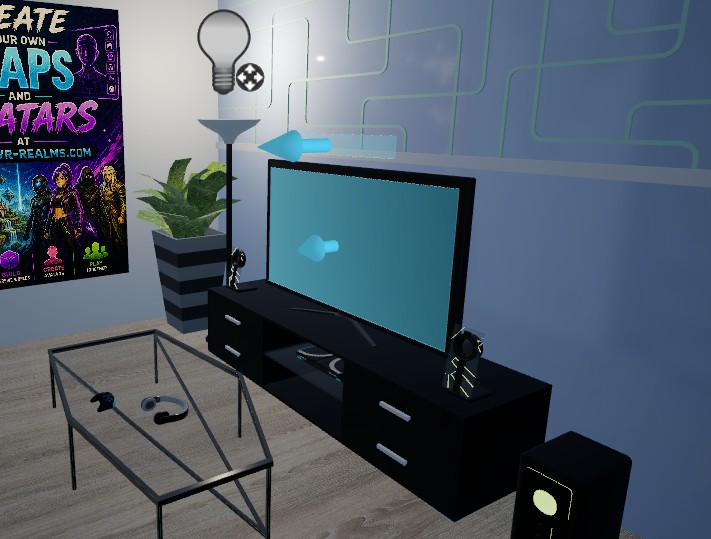
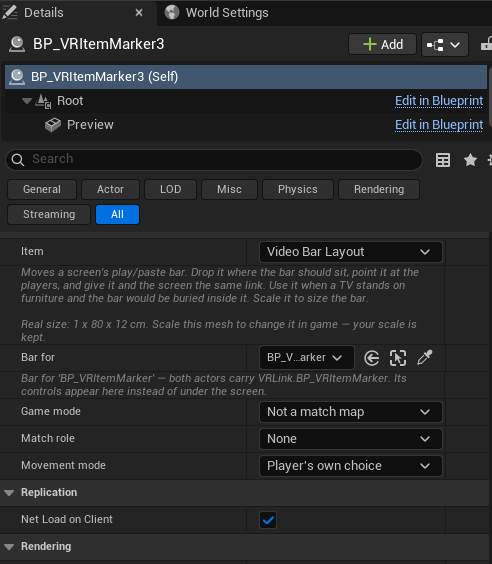
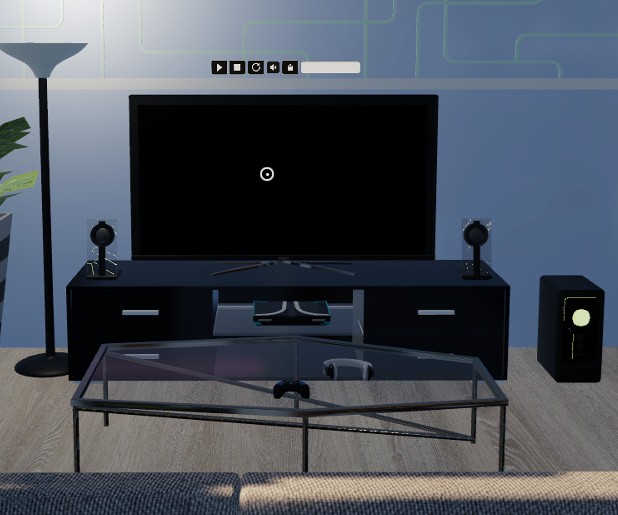
Every screen grows a control bar — play, stop, volume, paste and the URL. By default it hangs just below the screen, which is right on a wall but buried inside the furniture when a TV stands on a cabinet. This moves it.
- Place it where the bar should float — above the screen, to one side, on a nearby wall. The ghost is the bar's real footprint and the arrow is the way it will face, so turn it towards your players.
- Scale it to size the bar.
- Bar for: eyedropper the screen it belongs to. Both get matching
VRLink.<channel>tags — same wiring as a Button. - There is still only one bar; it moves. Add none and it stays under the screen.
- One per screen. With several TVs give each pair its own link name, or one screen takes the other's bar.
- No bar at all? Turn off Players can change it — a locked screen has no controls.
Mirror Widget
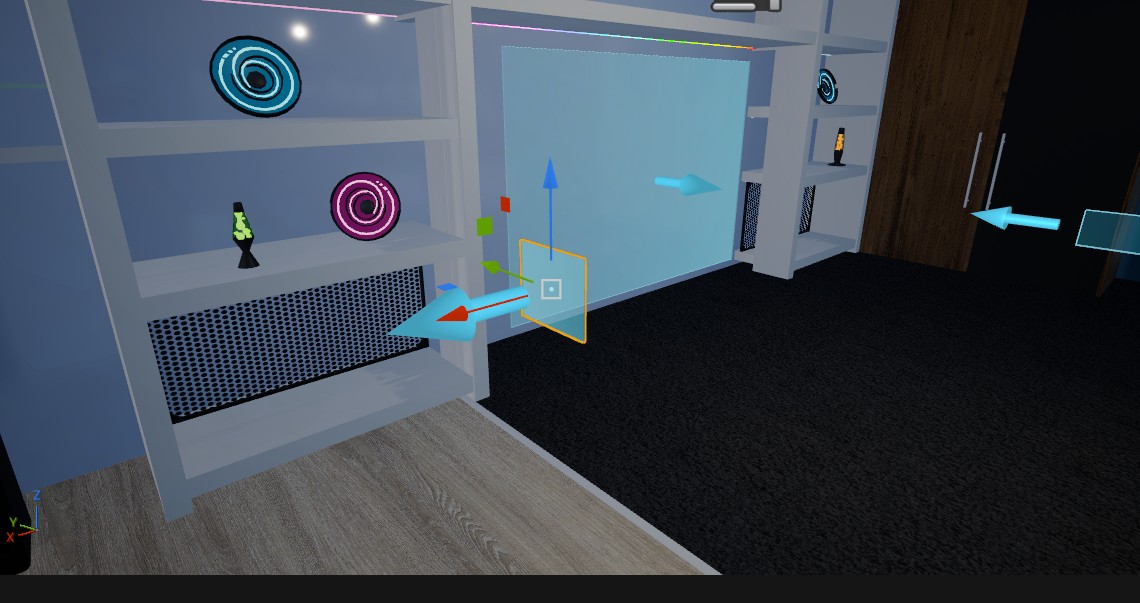
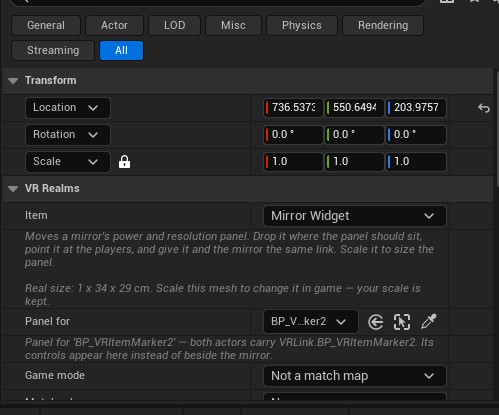
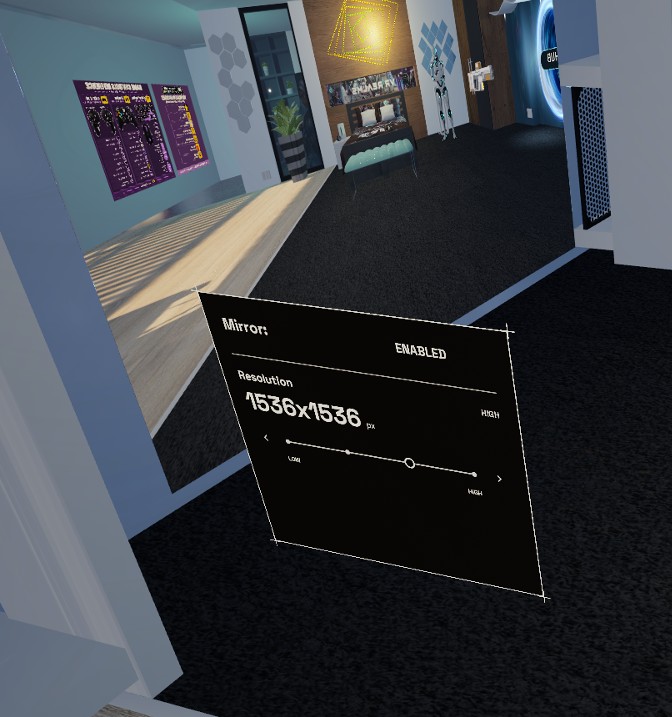
A mirror carries a small panel for its power and resolution. By default it sits beside the mirror and is sized from the mirror itself. This moves it — the same idea as the Video Bar Layout, for the same reason.
- Place it where the panel should sit. The ghost is its footprint and the arrow is the way it will face.
- Scale it to size the panel. Scale 1 keeps the size the mirror already gives it, so scale up or down from there.
- Panel for: eyedropper the mirror it belongs to.
- Add none and the panel stays beside the mirror, exactly as before.
- One per mirror. With several mirrors give each pair its own link name.
Buttons
Controls: eyedropper a target (mirror, TV, jukebox). Both get matching VRLink.<channel> tags.
Game mode & match roles (same panel)
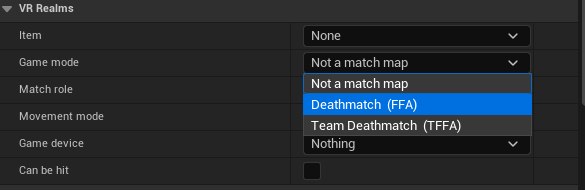
Game mode: Deathmatch (FFA) or Team Deathmatch (TDM). Sliders for score to win, player health, damage per hit. One per map. Prefer a Target Point so you can find the rules later.
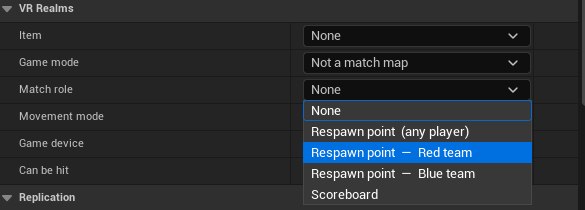
Match role: respawn point (optionally Red or Blue) or scoreboard. The actors are removed at load.
What can combine
| Together | Result |
|---|---|
| Item + Game mode | Both work |
| Item + Match role | No, setting one clears the other |
| Item + Grabbable | Grab ignored |
| Game mode + Match role | Both work |
| Two Game modes in one map | Avoid this, one wins arbitrarily |