Interactive Props
Item marker
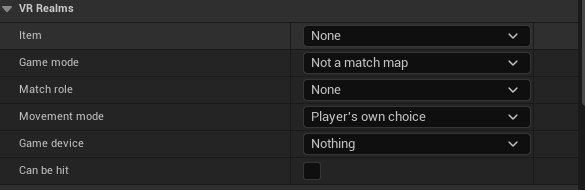
In the Content Browser open VRRealms/Items/ and drag BP_VRItemMarker into the level. On its own it’s a grey box. Pick something in the Item dropdown:
- The box changes shape to the real item’s size (TV ≈ 160×90 cm; rifle pad = rifle footprint).
- An arrow shows which way the item faces.
- Scale it and the real item scales for everyone.
Editor only, and stripped out when the map is built. Nothing from the kit ships in your pak.
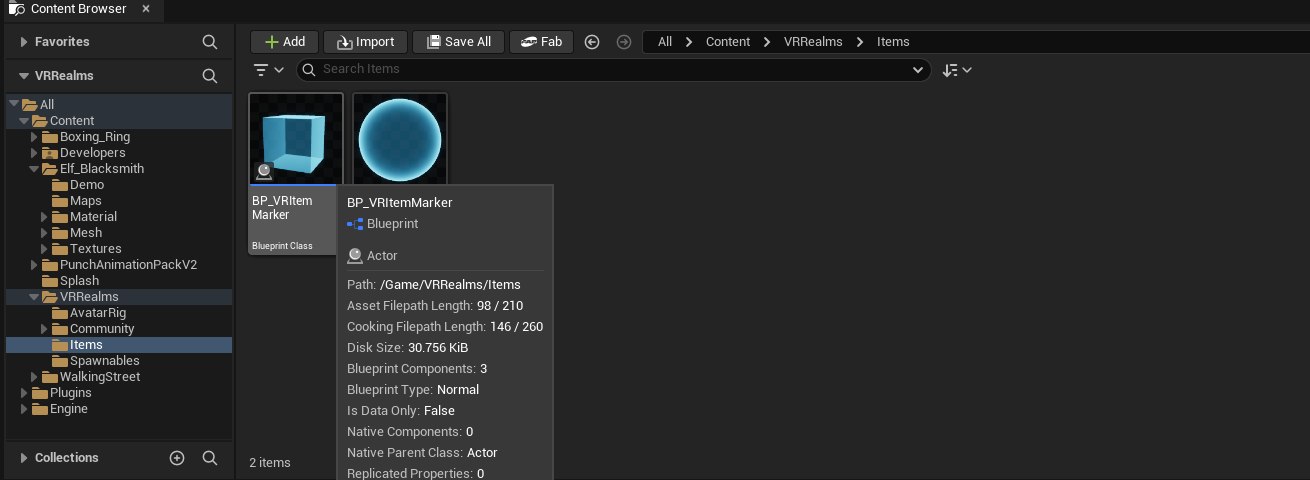
VRRealms/Items/. Drag it into the level.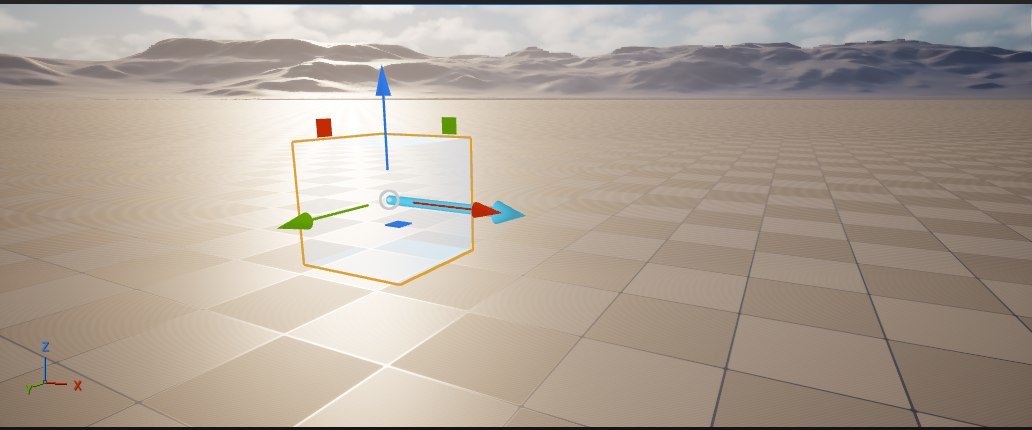
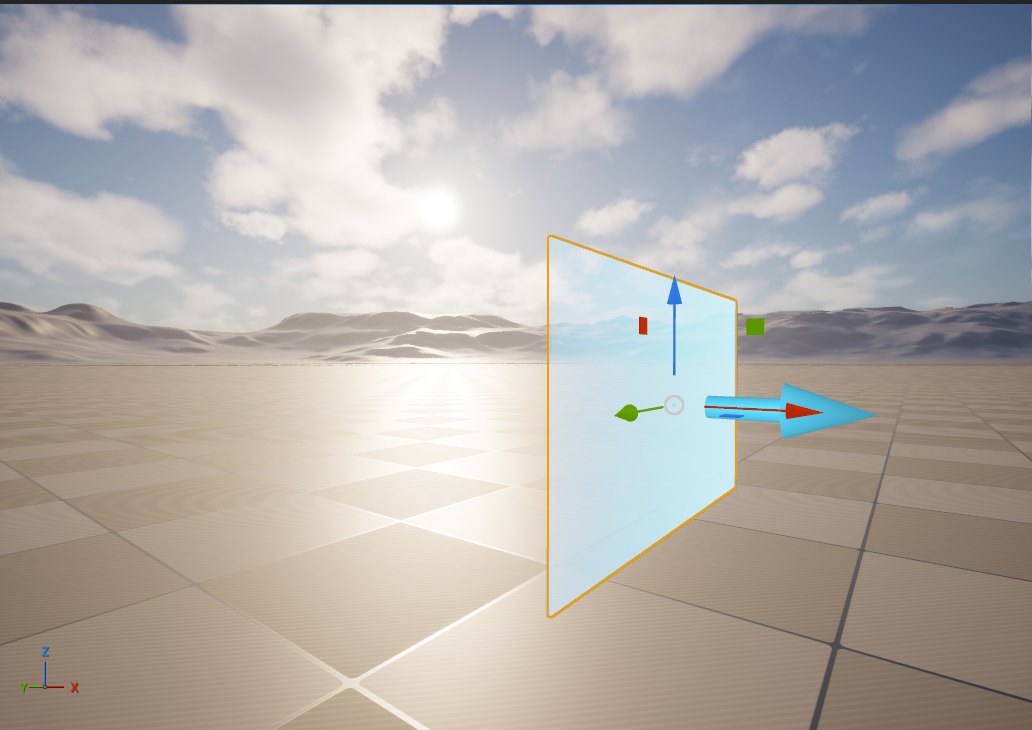
What the arrow means
| On a… | Arrow points at… |
|---|---|
| TV / Surface Screen | The side the picture is on |
| Drivable Car | Direction it drives off in |
| Drawing Board / Mirror | The face players use |
| Button | The face that gets pressed |
| Scoreboard | Readable side |
| Respawn point | Look direction on arrival (yaw only) |
No arrow = no meaningful front (marker, eraser, spray can).
The VR Realms panel
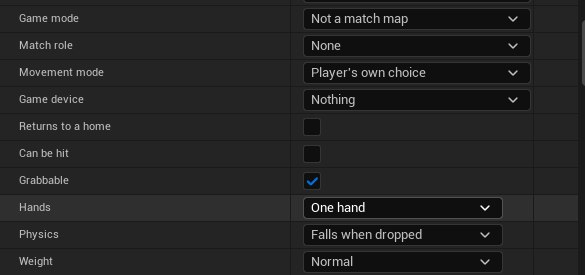
Select an actor → Details → VR Realms (near the top). Works on Static Mesh Actor, Target Point, and BP_VRItemMarker. Rows appear only when relevant. The panel writes ordinary Actor Tags, identical to ones you type by hand.
Works on a whole selection at once (thirty rocks → tick Grabbable once).
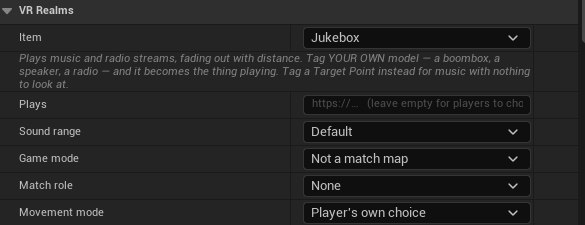
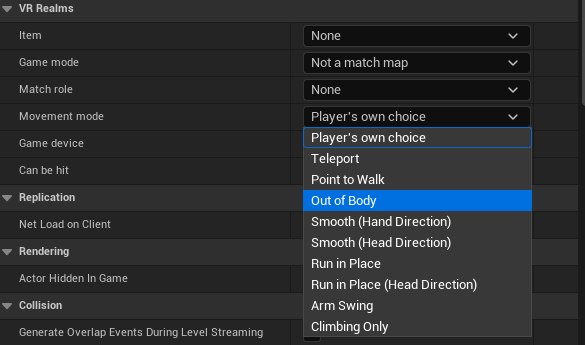
Movement mode
The same panel carries a Movement mode row on markers and Target Points. Player’s own choice leaves locomotion to each player’s settings, which is right for almost every map. Pick a style only when the map is built around it, for example Climbing Only on a climbing course or Teleport where smooth movement would break the design.