
Create · Step 6 of 6
Publish
One button sends it to the Steam Workshop. Players find it in the game.
| You will have | Your world or avatar on the Steam Workshop, for everyone. |
| You need | A build from step 5. Steam open and signed in. A title, a few words about it and a preview picture. |
| Code needed | None |
Steps
1. Open Steam
Upload goes through your own Steam app, so keep Steam open, signed in and online. There is nothing else to sign in to. If Steam is offline, Upload waits up to a minute for it, then says what to do.
2. Fill in the form
Type a Title and a Description, and pick a Preview image.
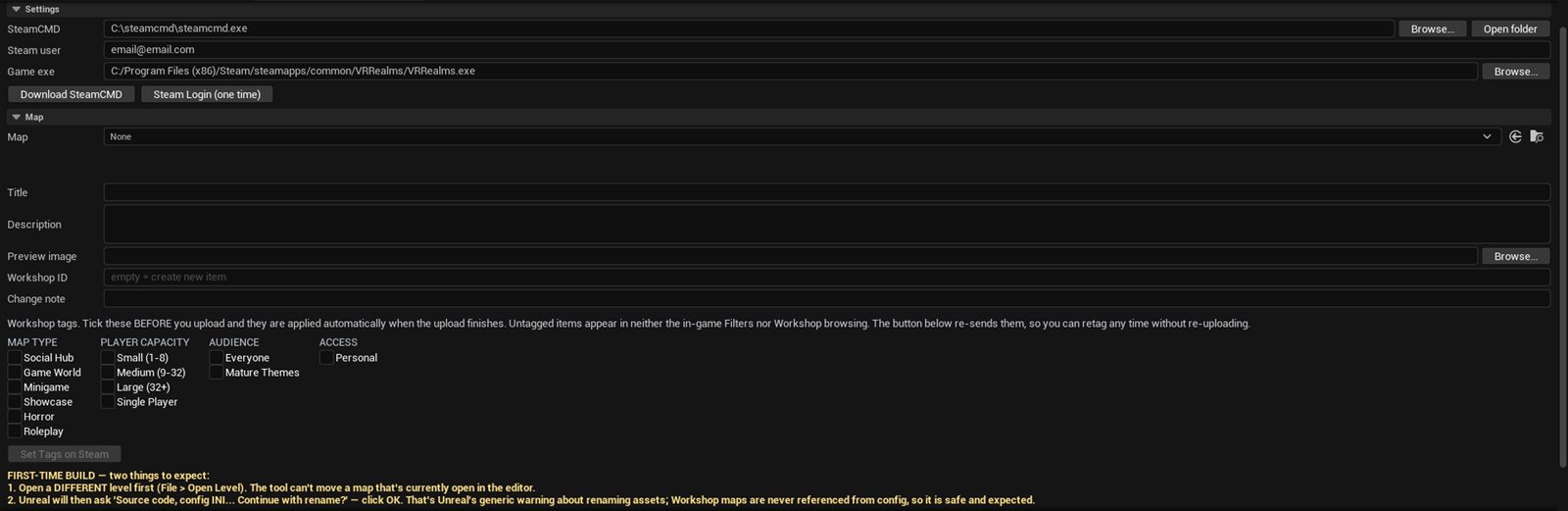
3. Tick your tags
For a world: Map Type, Player Capacity and Audience. For an avatar: Avatar Style and Audience. Players filter by these in the game, so an item without tags is close to invisible.
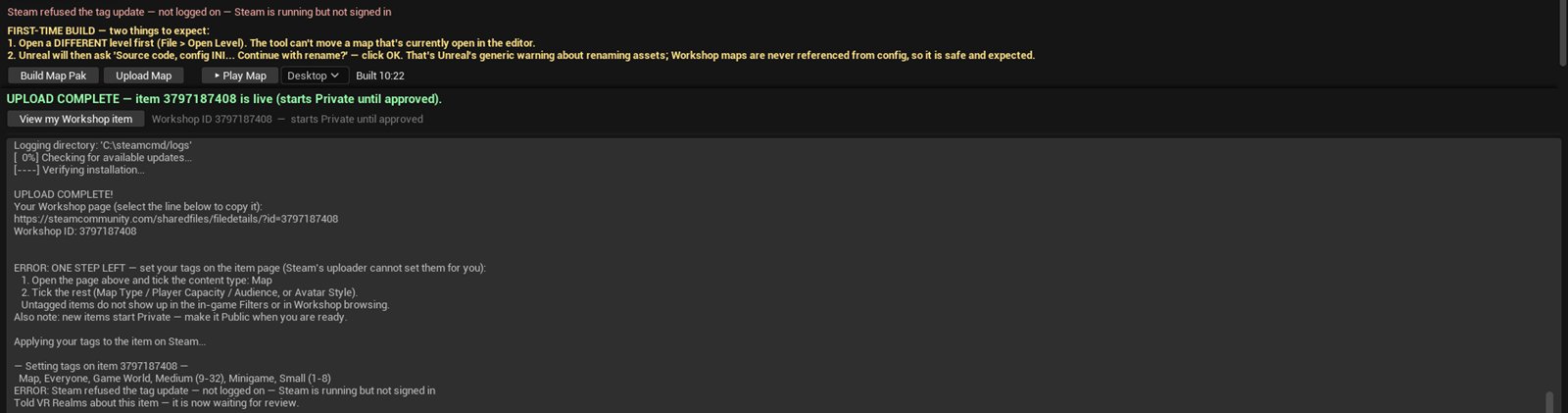
4. Press Upload
The log prints the link of your item and puts your tags on it.
5. Find it in the game
Upload makes the item Public on the Workshop. A new world shows in the game soon after, marked Not verified until the team has checked it. An avatar waits for that check before others see it. Your own items always work for you.
Change it later
Build again and Upload again. That updates the same item. Updates do not count toward Steam’s limit of about 10 to 15 new items a day.
The rules
Upload only what you made or what its licence lets you share. Content standards and other people’s characters and worlds say what gets approved.
Something went wrong?
Upload says Steam is not online
Steam is offline, in Offline Mode, or your account is signed in somewhere else. In Steam press Go Online, or restart Steam, then Upload again. A failed upload opens a window that says why.
My tags are missing
For a new item the tags go on right after the upload. If Steam refused them, sign out of the Steam app and back in, then press Set Tags. You can also tick them on the item’s page.
Upload asks before it replaces something
The Workshop ID in the form belongs to another item of yours. Empty the field for a new item.