Create · Step 5 of 6
Test it
Play your world in the real game before anyone else sees it. First by yourself, then with a second player.
| You will do | Run your world in the real game, with a test player in it. |
| You need | VR Realms installed from Steam, which is free. The level from the steps before. |
| Code needed | None |
Steps
1. Press Build Map Pak
In the panel’s Map section press Build Map Pak. If your level is the one open in the editor, open another level first. The first build takes 3 to 15 minutes.
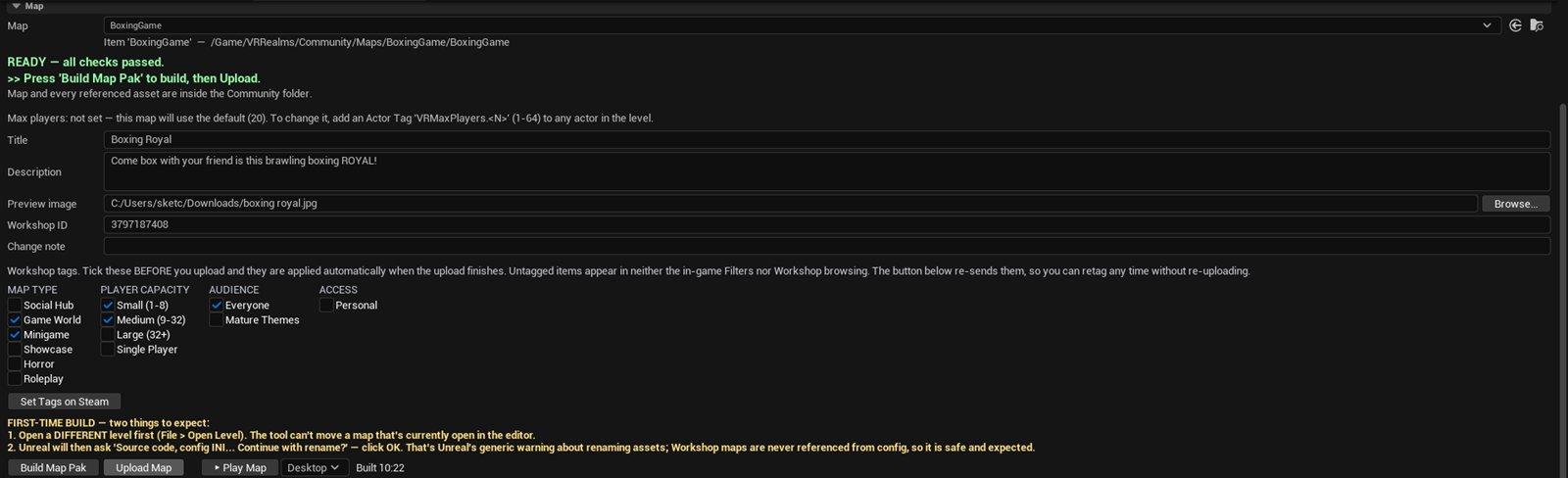
2. Press Play Map
Pick VR or Desktop in the dropdown beside it, then press Play Map. The game starts straight in your world.

3. Walk around
What you see is what players get. A test is offline, so nothing half finished reaches anybody else.
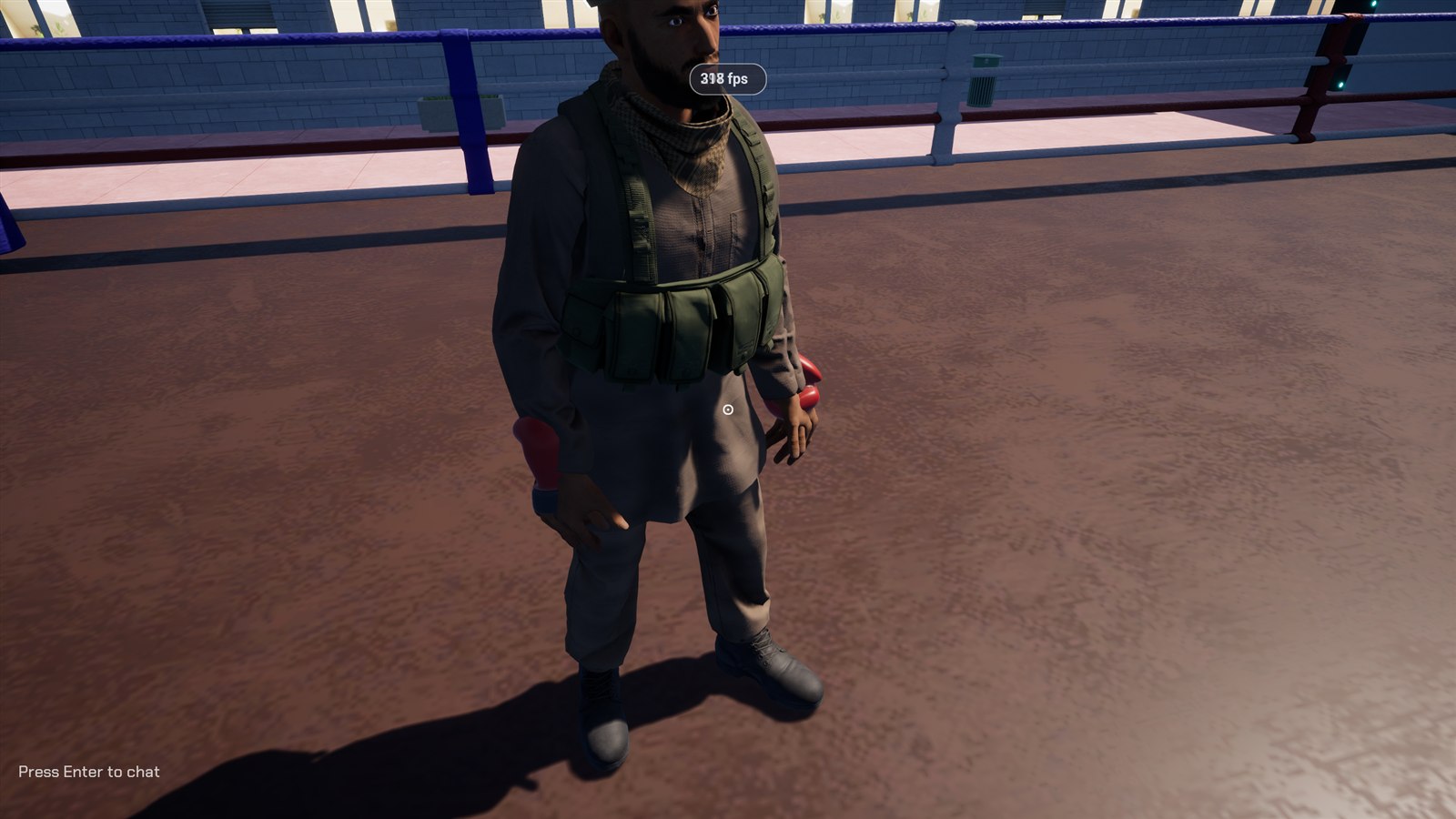
4. Add a second player
Open chat and type /spawn bot 1. A test player appears at one of your spawn points. /spawn bot clear takes them away again.
Something went wrong?
The first build looks stuck
If UnrealEditor-Cmd is using the processor, it is still working. Truly stuck means 5 minutes at 0 percent.
Play Map does not find the game
Install VR Realms from Steam. The panel finds it the first time you press Play.